
Getting Started
Interface overview, navigation, search, and your first widget
The Kreye Canvas
Kreye is an AI-powered canvas workspace that lets you organise your thoughts, notes, tasks, and data into a flexible, free-form visual environment. It combines structured widgets (rich text, checklists, tables) with an integrated AI assistant that can answer questions, generate content, and run multi-step workflows across your widgets.
The Interface
The Kreye interface is divided into four main areas:
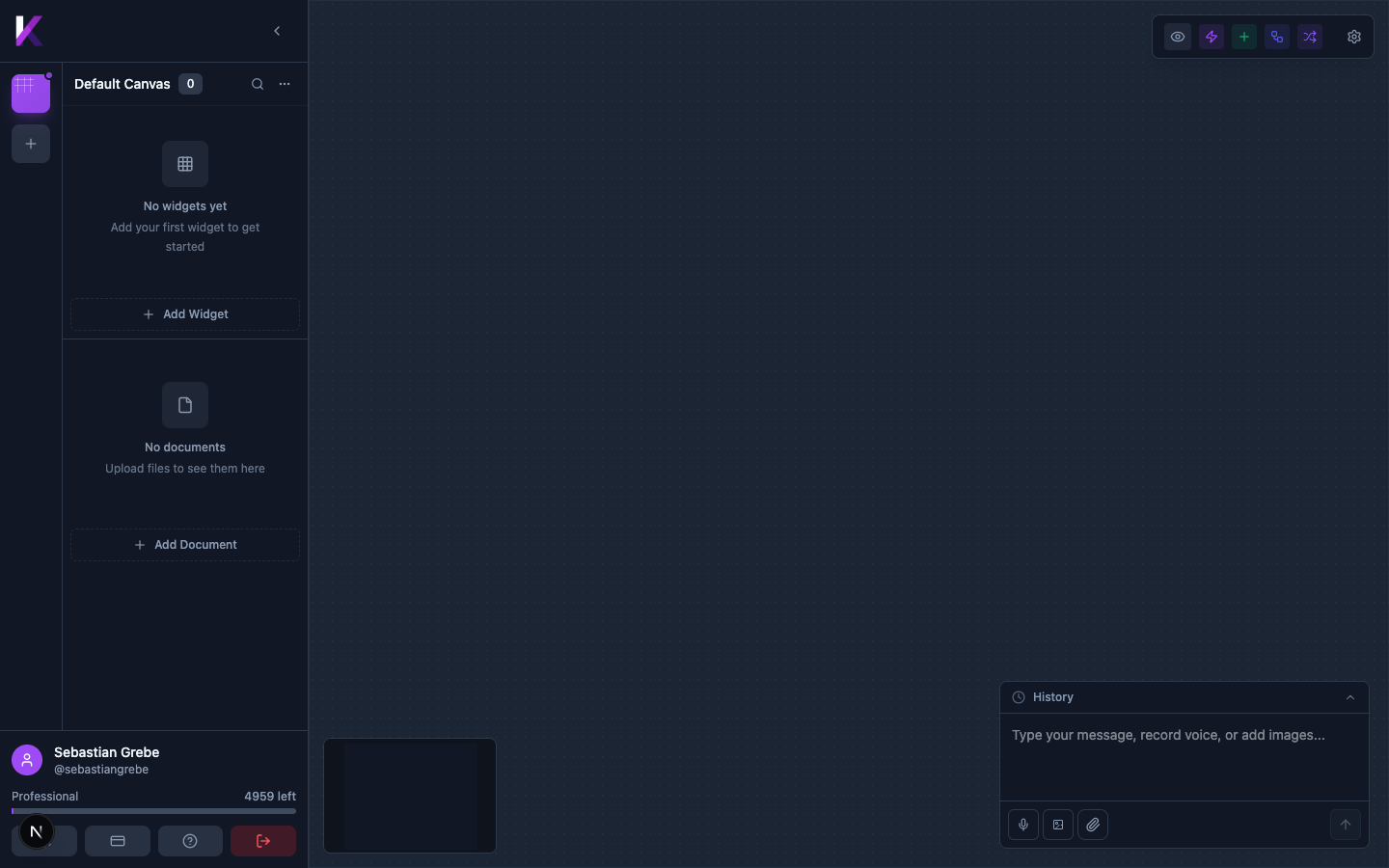
| Area | Description |
|---|---|
| Left Sidebar | Lists all canvases, widgets, and documents. Contains account controls at the bottom. |
| Canvas Area | The central free-form workspace where widgets are displayed and arranged. |
| Top Toolbar | Controls for connection visibility and canvas settings (top-right). |
| AI Chat Panel | Floating panel (bottom-right) for interacting with the AI assistant. |
Navigating the Canvas
- Panning: Click and drag anywhere on the canvas to move around your workspace.
- Zooming: Use your mouse wheel or trackpad to zoom in and out, allowing you to focus on details or get a high-level overview of your knowledge graph.
- Minimap: A minimap in the bottom-left corner gives you a bird's-eye view of all your widgets. Click a region to navigate there quickly.
Sidebar & Layout
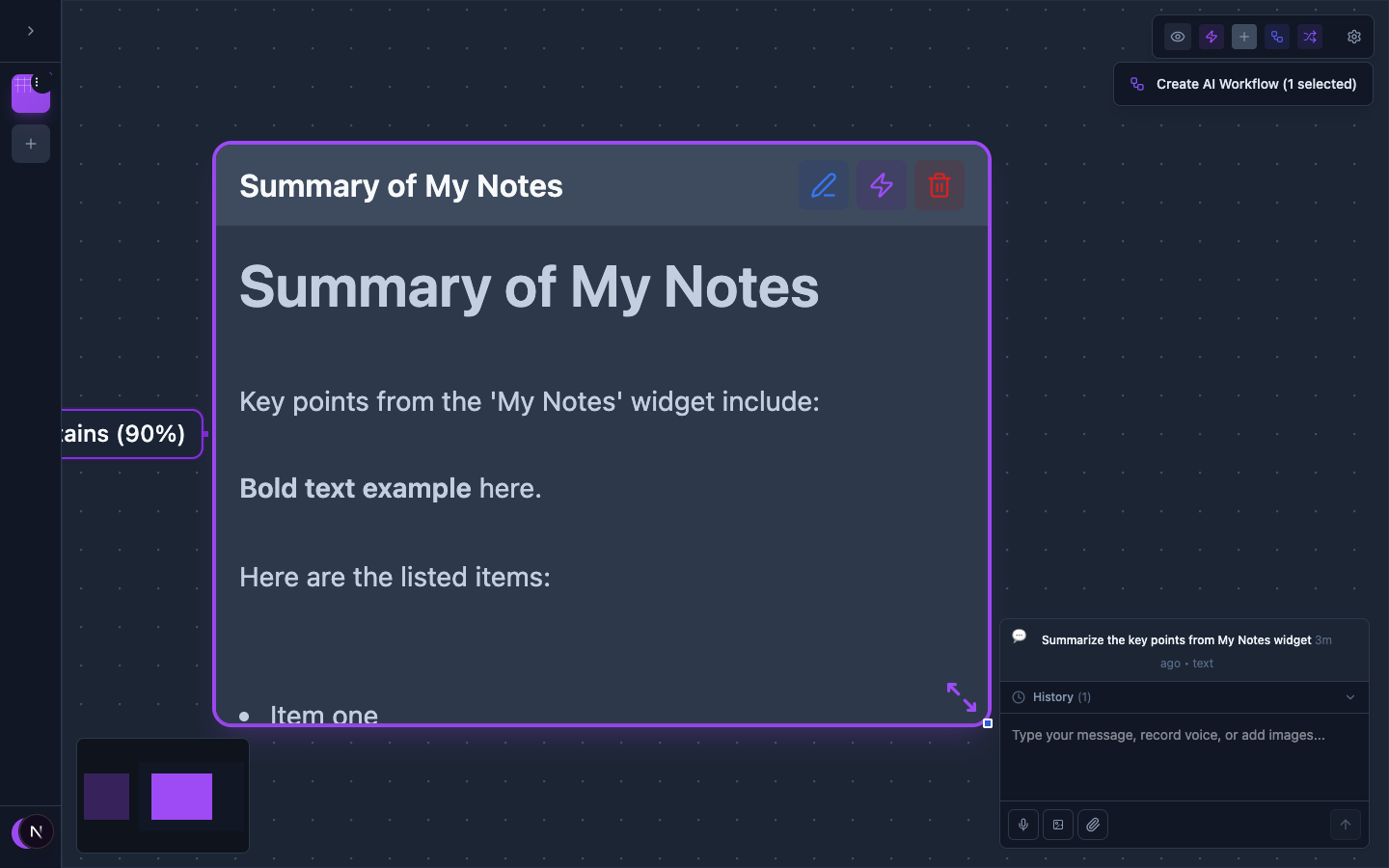
Click the collapse arrow at the top of the sidebar to hide it and maximise your canvas workspace. Click it again to expand.
Search
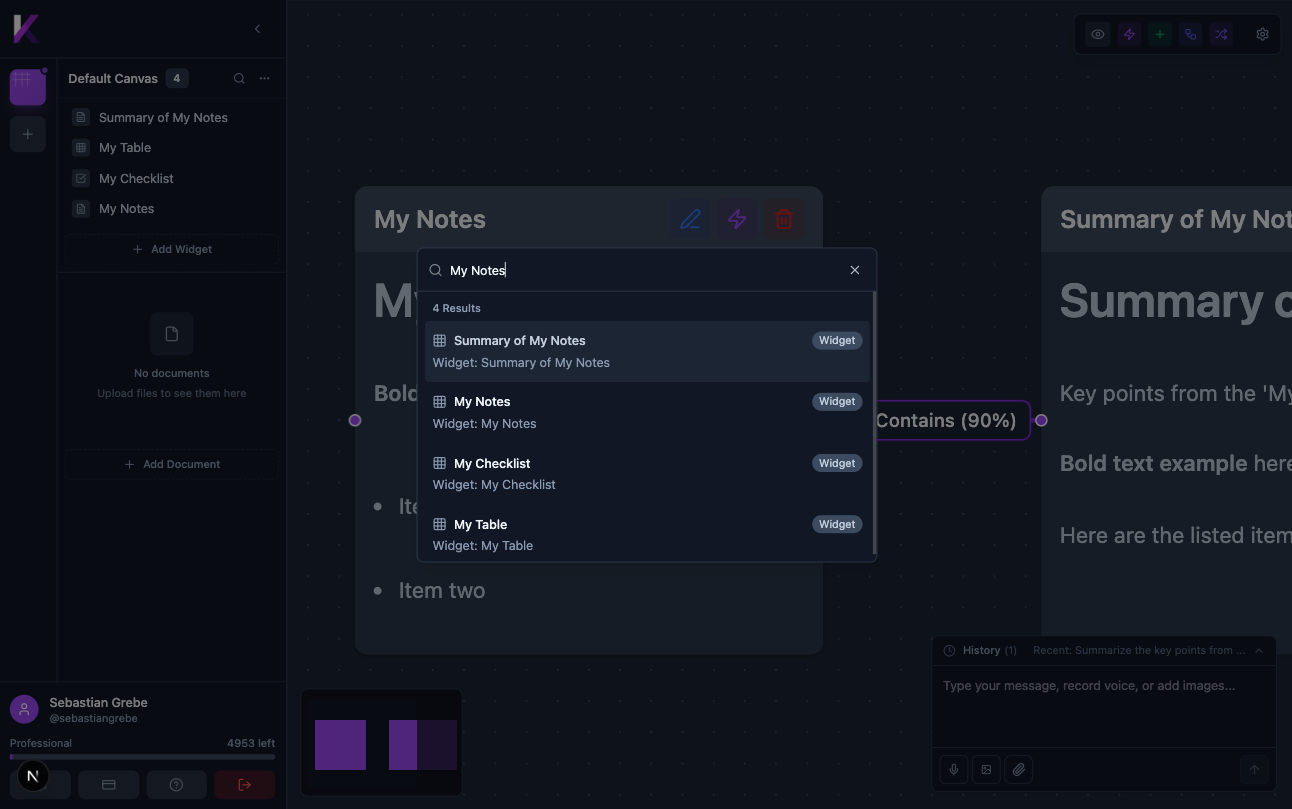
Click the magnifying glass icon next to the canvas name to open the global search panel. Results appear instantly as you type and include canvases, widgets, documents, and content.
Creating Your First Widget
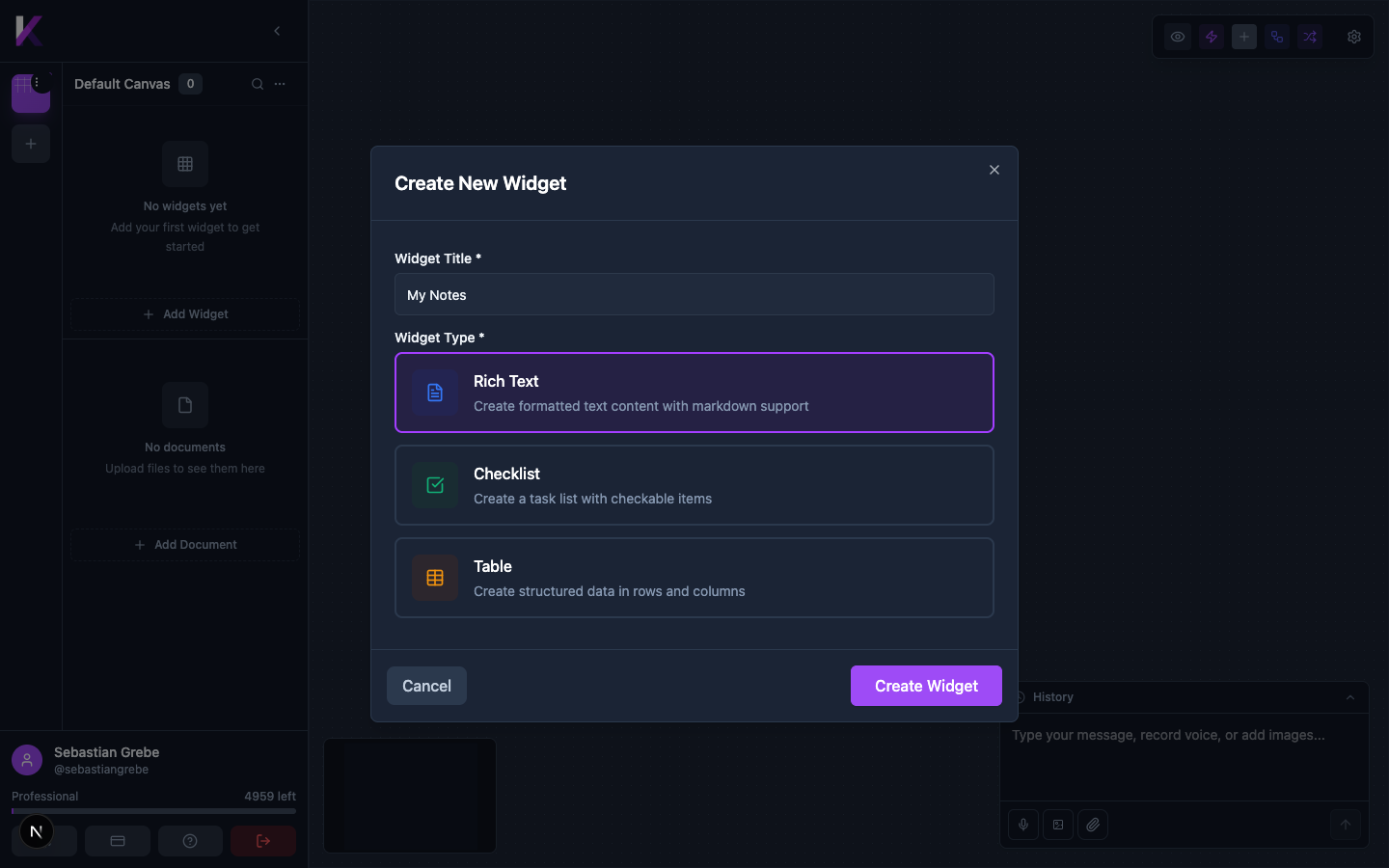
Widgets are the building blocks of your Kreye canvas. To create one:
- Click + Add Widget in the sidebar.
- Enter a Widget Title.
- Select a Widget Type (Rich Text, Checklist, or Table).
- Click Create Widget.
Quick Reference
| Action | How to do it |
|---|---|
| Create a new canvas | Click + in the top-left sidebar |
| Add a widget | Click + Add Widget in the sidebar |
| Edit a widget | Select it, then click the pencil icon |
| Delete a widget | Select it, then click the trash icon |
| Run an AI workflow | Select a widget, then click the lightning bolt icon |
| Chat with the AI | Type in the bottom-right chat panel and press Enter |
| Search everything | Click the magnifying glass next to the canvas name |
| Collapse sidebar | Click the arrow at the top of the sidebar |
| Access billing/settings | Click the card icon at the bottom of the sidebar |