
Widgets
Create, edit, and manage Rich Text, Checklist, and Table widgets
Understanding Widgets
Widgets are dynamic containers for your information — the building blocks of your canvas. Each widget displays content in a specific format.
Widget Types
There are three types of widgets available:
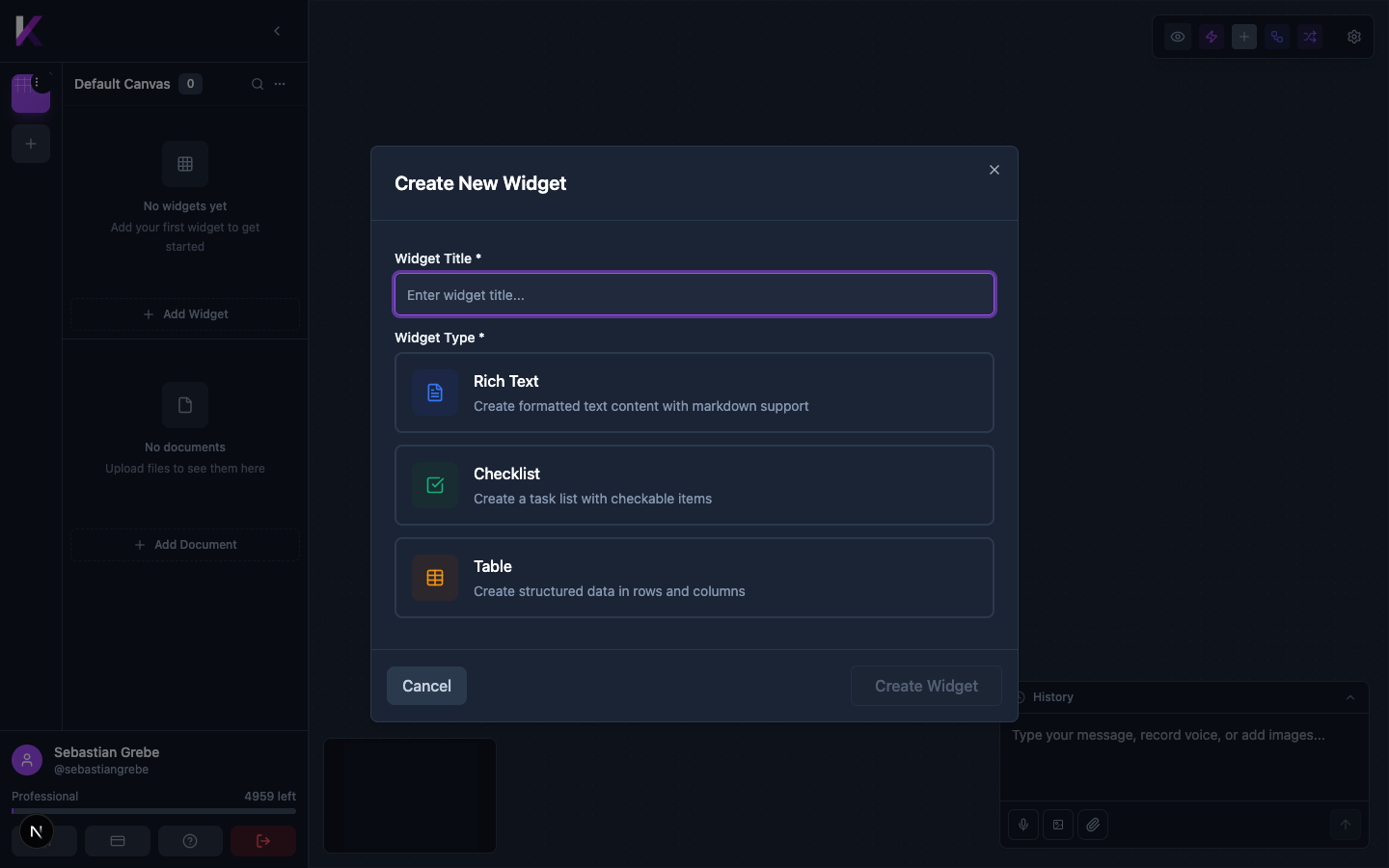
| Widget Type | Purpose |
|---|---|
| Rich Text | Formatted text with full Markdown support (headings, bold, lists, etc.) |
| Checklist | Task list with checkable items and a progress bar |
| Table | Structured data in rows and columns |
Creating a Widget
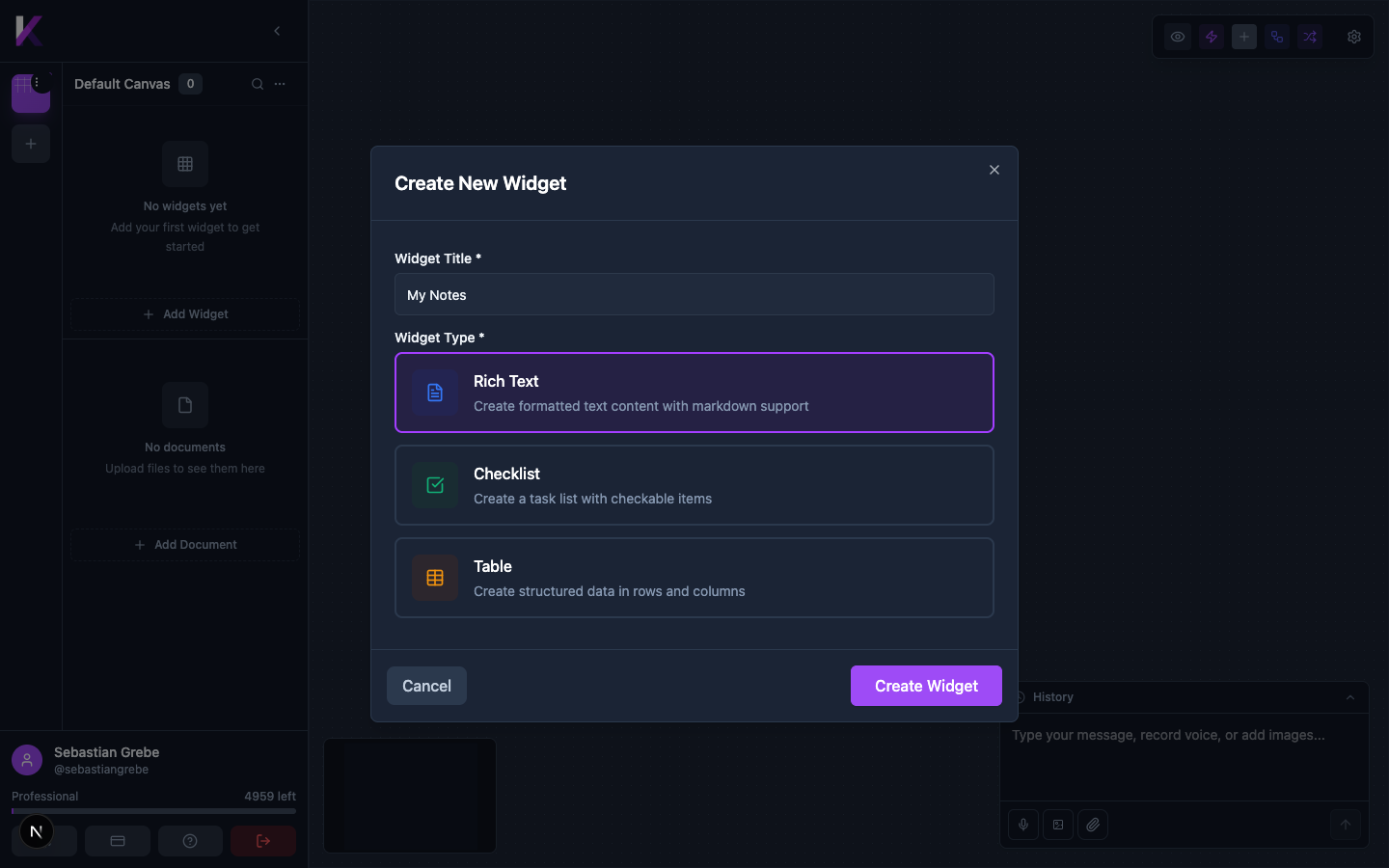
Click + Add Widget in the sidebar (or the button on the canvas when empty). In the modal:
- Enter a Widget Title.
- Select the Widget Type.
- Click Create Widget.
Editing a Widget
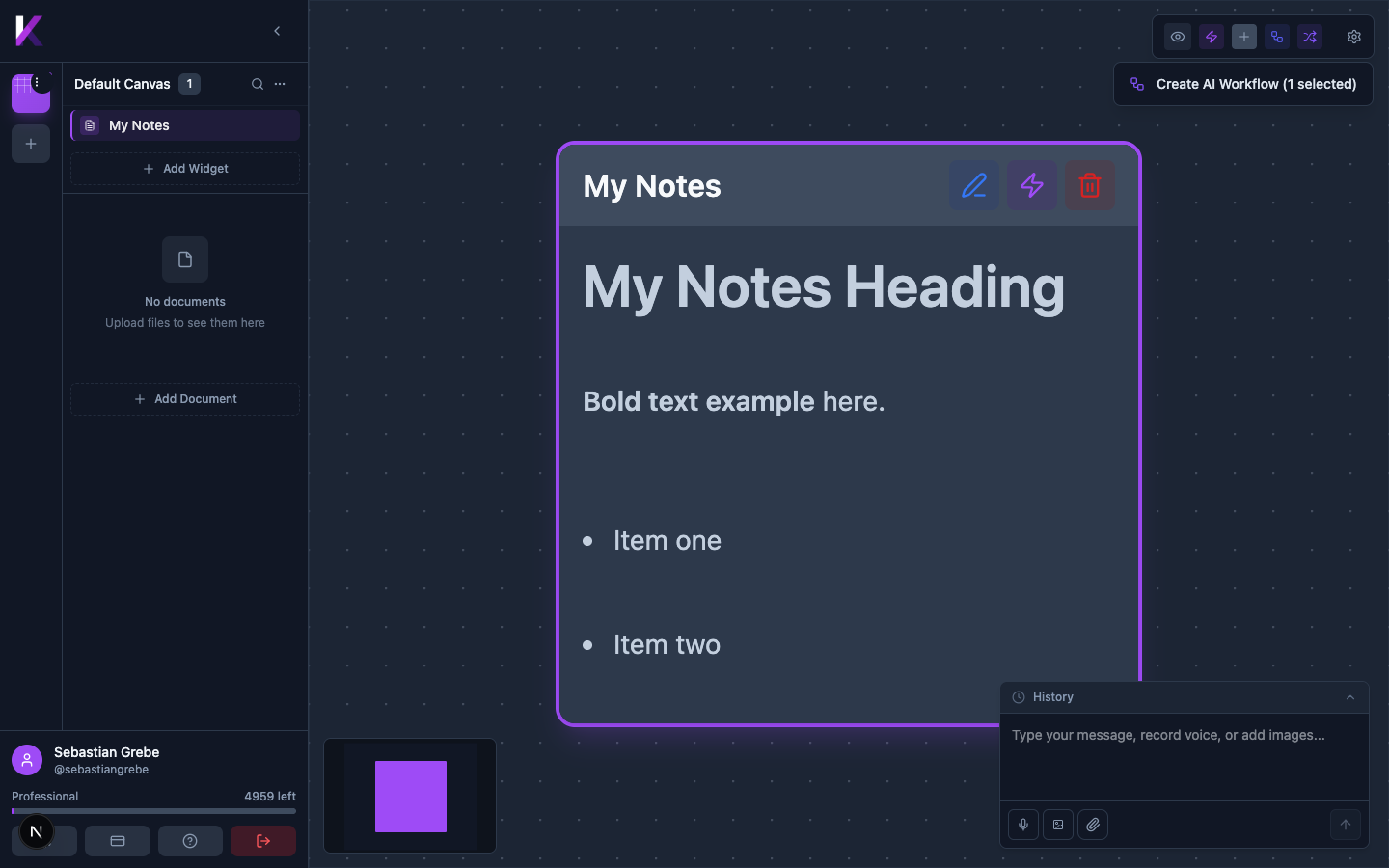
Click the widget in the sidebar to select it. Then click the pencil icon that appears in the widget's top-right corner.
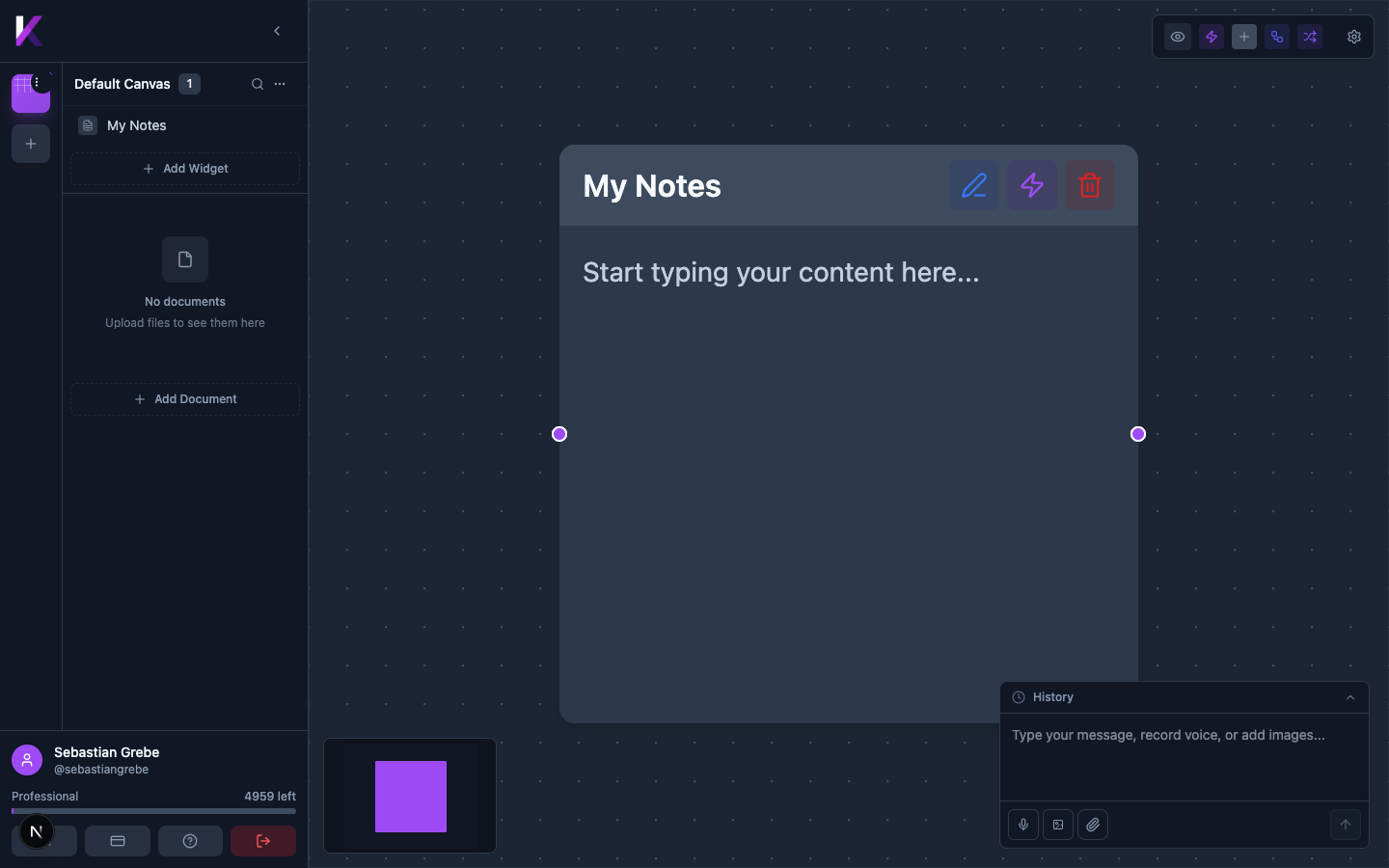
This opens an edit modal where you can update the title and content.
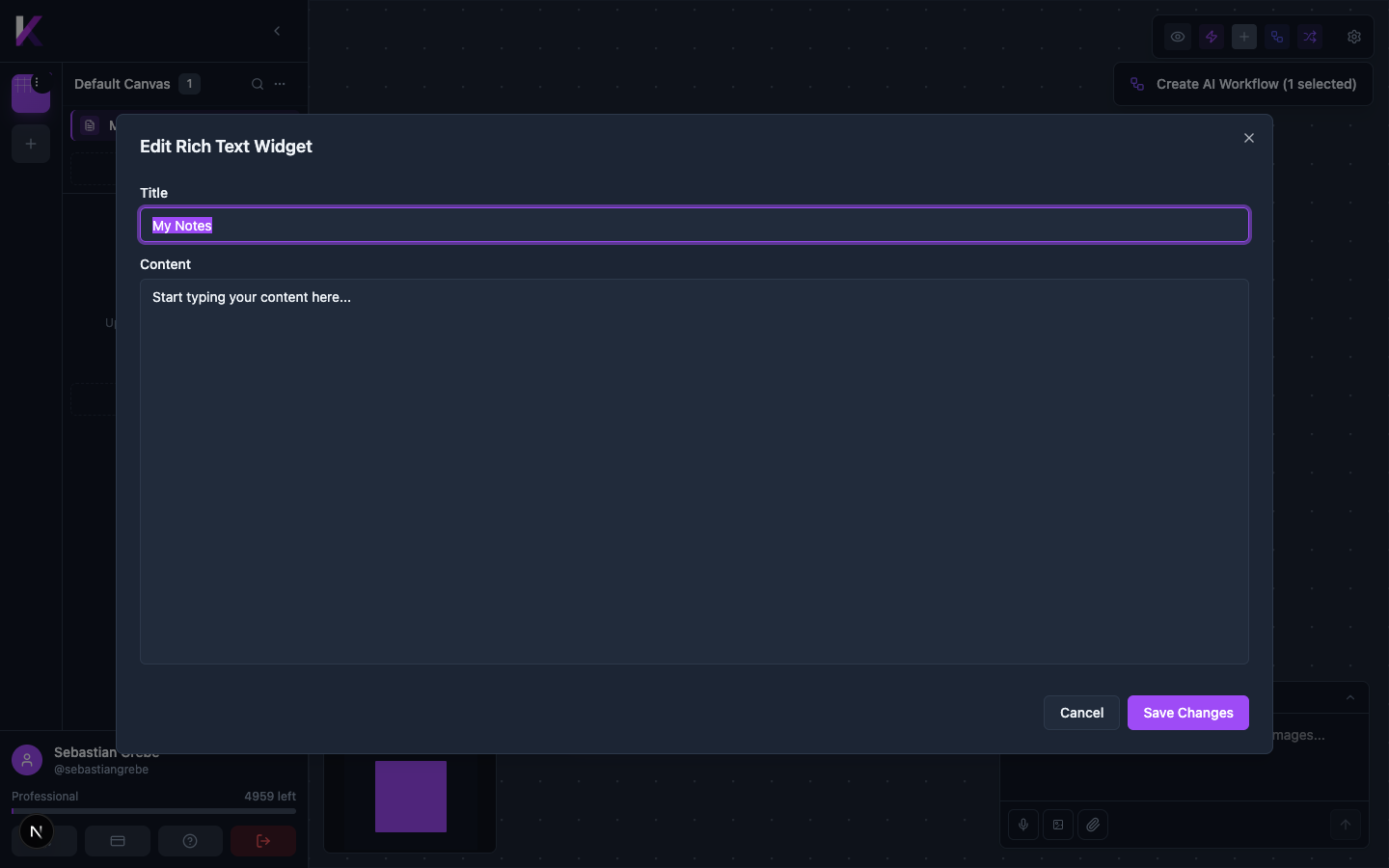
Click Save Changes to apply. The widget renders Markdown formatting live on the canvas.
The Checklist Widget
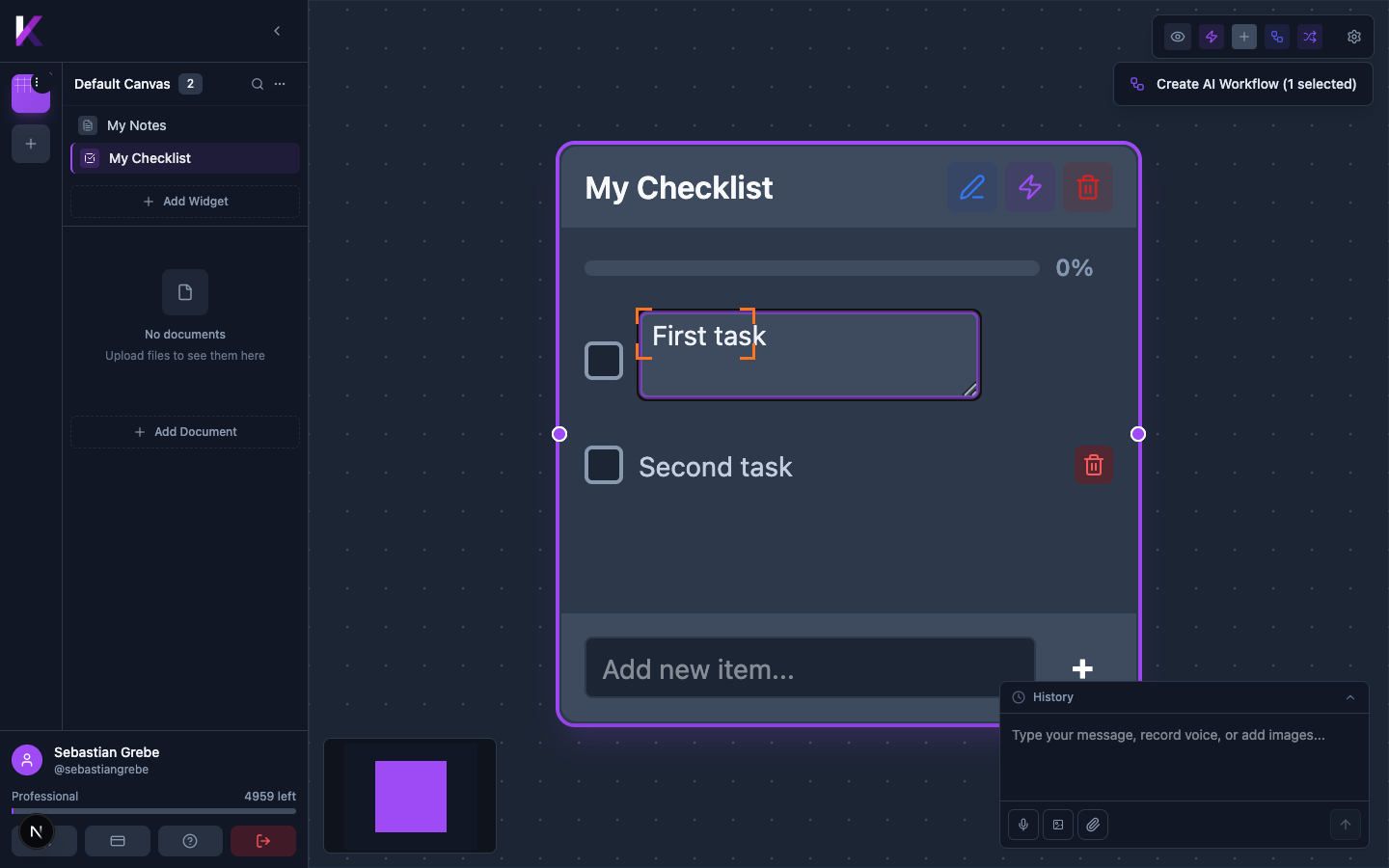
The Checklist widget includes:
- A progress bar showing completion percentage
- Checkboxes to mark tasks done (completed items appear struck-through)
- An "Add new item…" input at the bottom to add tasks inline
- A delete button per item to remove it
The Table Widget
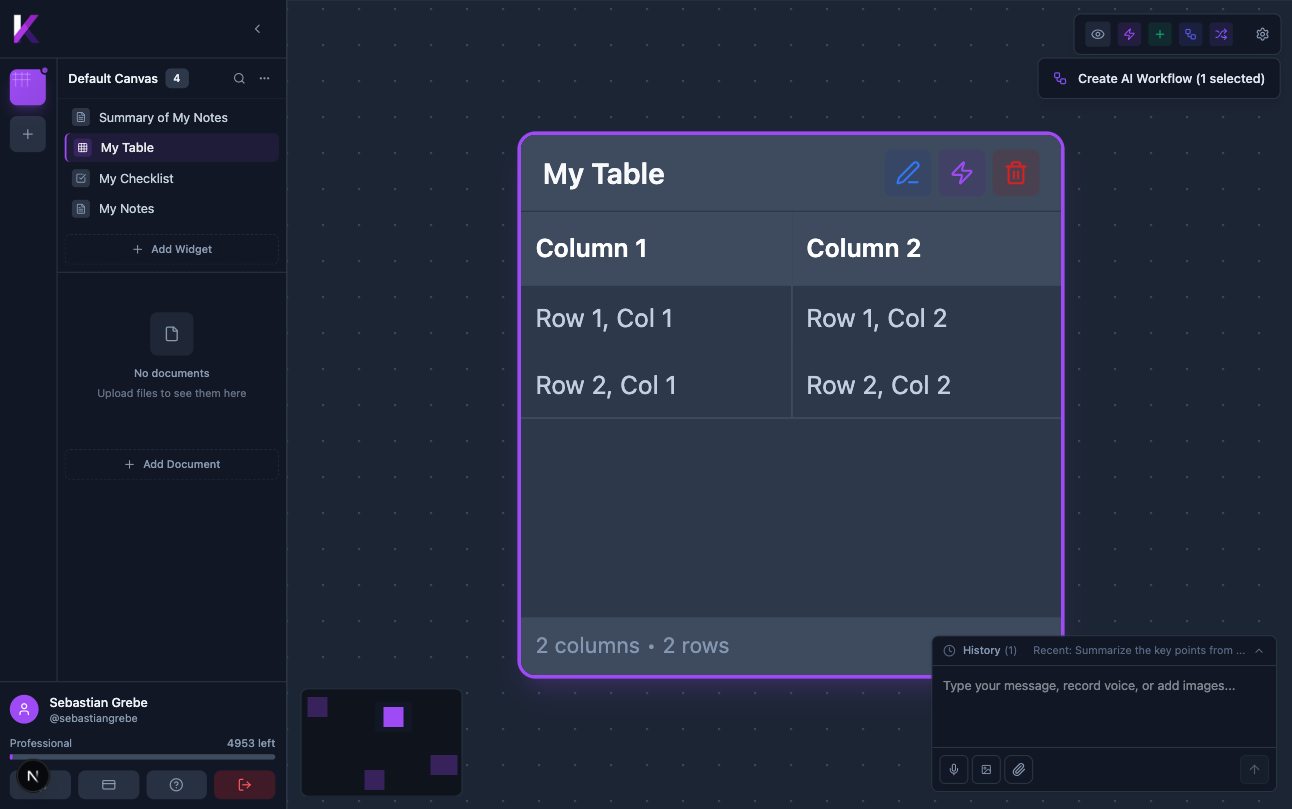
The Table widget displays structured data in a grid. By default it creates a 2-column × 2-row table with placeholder content. The footer shows the table dimensions (e.g., "2 cols • 2 rows").
Moving & Resizing Widgets
- Click and drag any widget to reposition it on the canvas.
- Resize widgets by dragging their edges.