
AI Workflows
Multi-step AI operations on widgets with advanced configuration
AI-Powered Workflows
AI Workflows let you instruct the AI to perform multi-step operations on one or more selected widgets — such as summarising content, comparing data, or generating new widgets from existing ones.
Starting a Workflow
- Click on a widget to select it (a purple border appears).
- Click the "Create AI Workflow" button in the top-right, or the lightning bolt icon on the widget.
- The "Initiate AI Workflow" dialog opens.
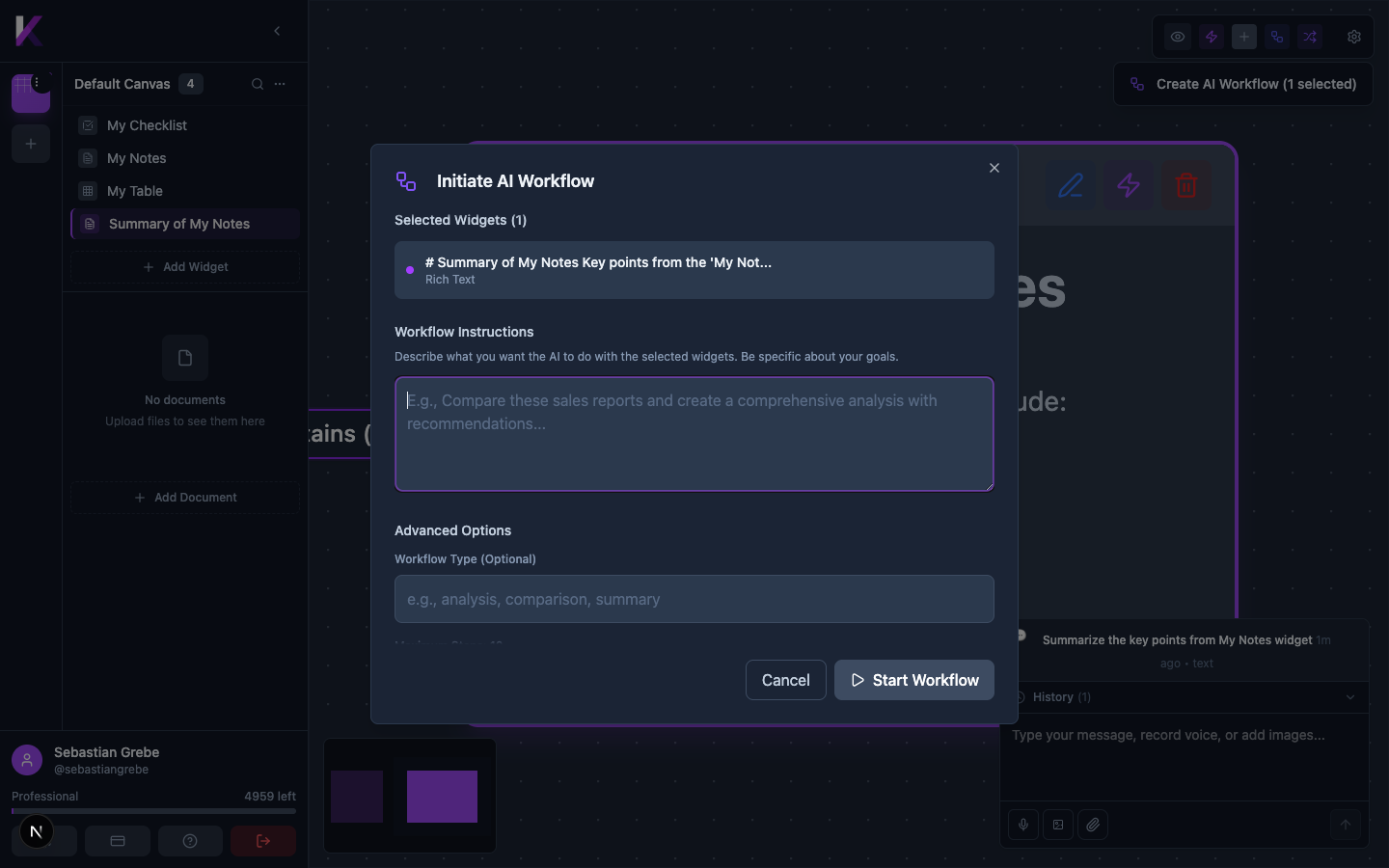
Workflow Instructions
Describe what you want the AI to do with the selected widget(s). Be specific — for example: "Summarise this content and create a checklist of action items."
Advanced Options
Expand Advanced Options to configure:
- Workflow Type (Optional) — Describe the type (e.g., "analysis", "comparison", "summary")
- Maximum Steps — How many steps the AI can take (default: 10)
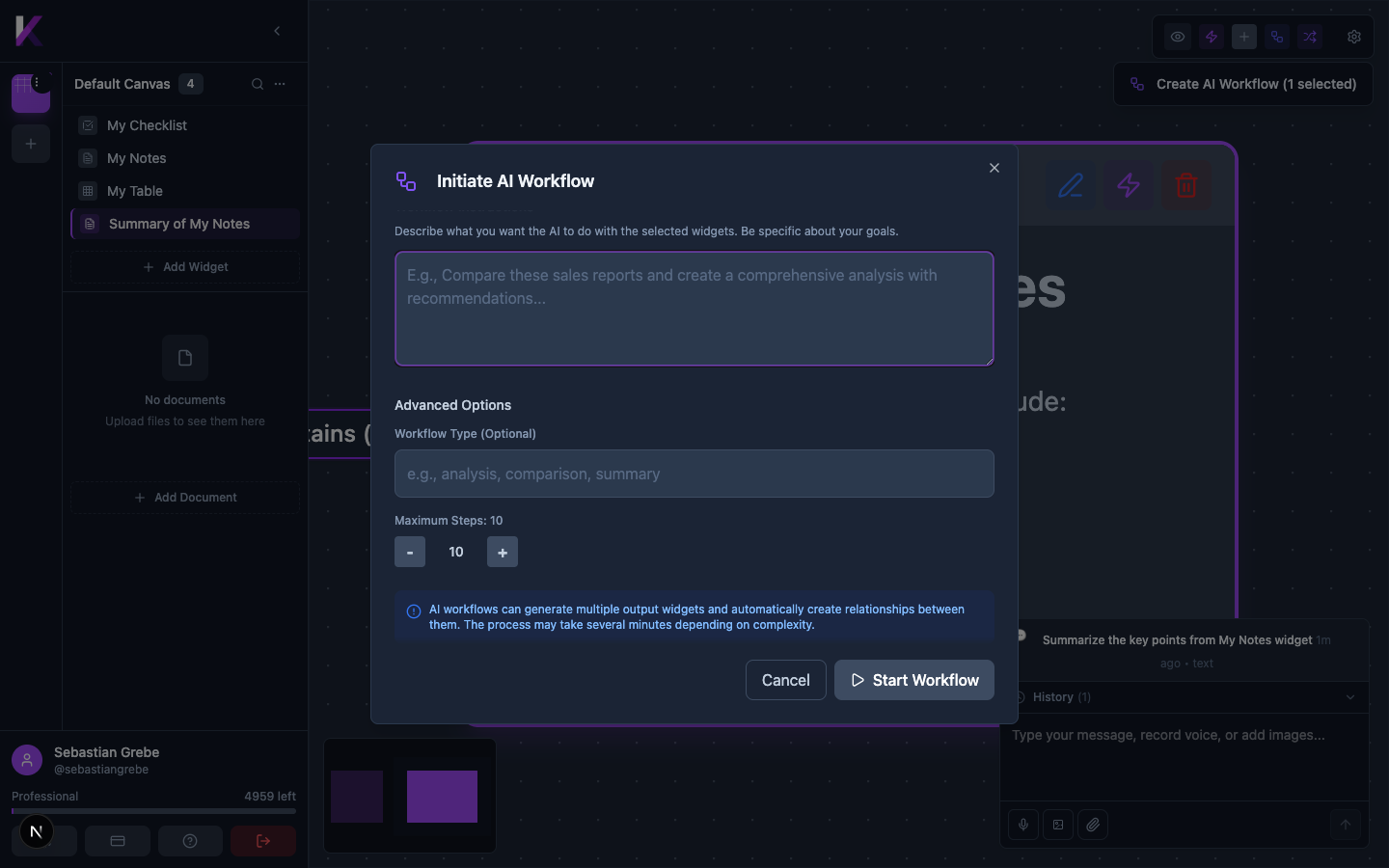
AI workflows can generate multiple output widgets and automatically create relationships between them. Complex workflows may take several minutes.